New reservation
sidebar_position: 1
Section titled “sidebar_position: 1”Follow each step to use the Breeze TravelPro portal to create a new reservation.
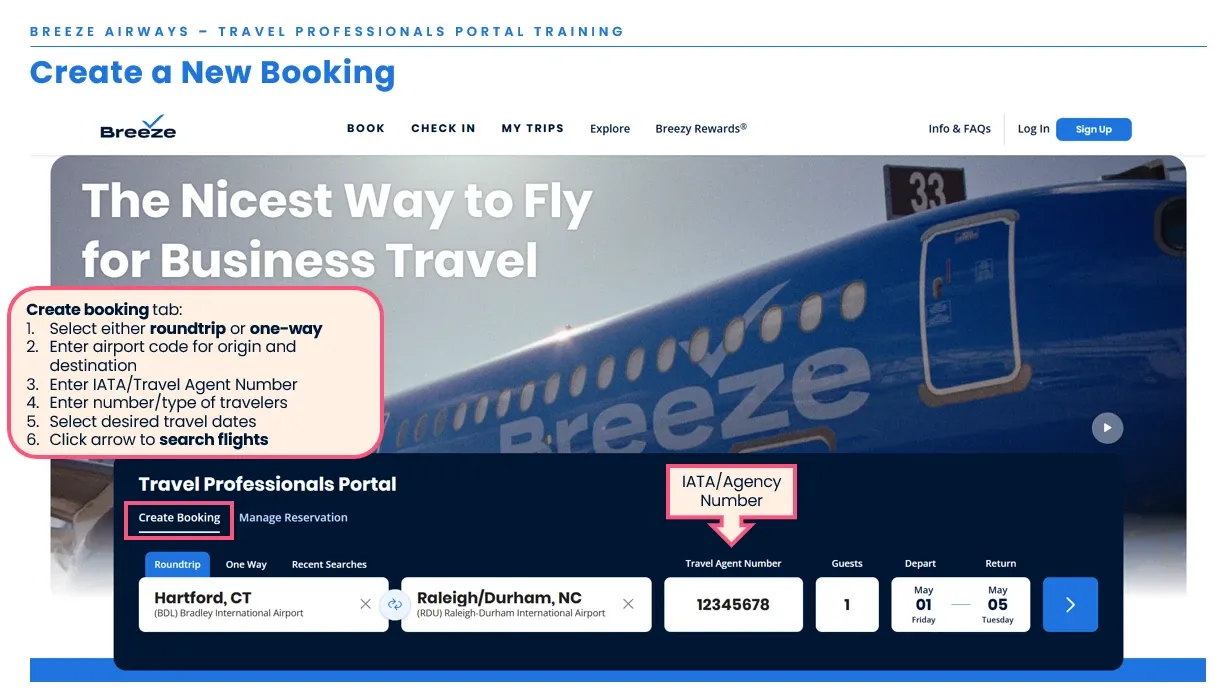
Search for available flights
Section titled “Search for available flights”- Go to flybreeze.com/travelpro
- Input the following information under the “Create booking” tab
- Select either Roundtrip or One-Way. You may also select Recent Searches to see a history of recently searched routes
- Enter the 3-letter airport code, or start typing the city name for autofill, for the departure and arrival cities
- Enter your IATA Travel Agent Number
- Enter the number of travelers (see note below about children)
- Select desired travel dates
- Click the arrow button to search flights
Select fare
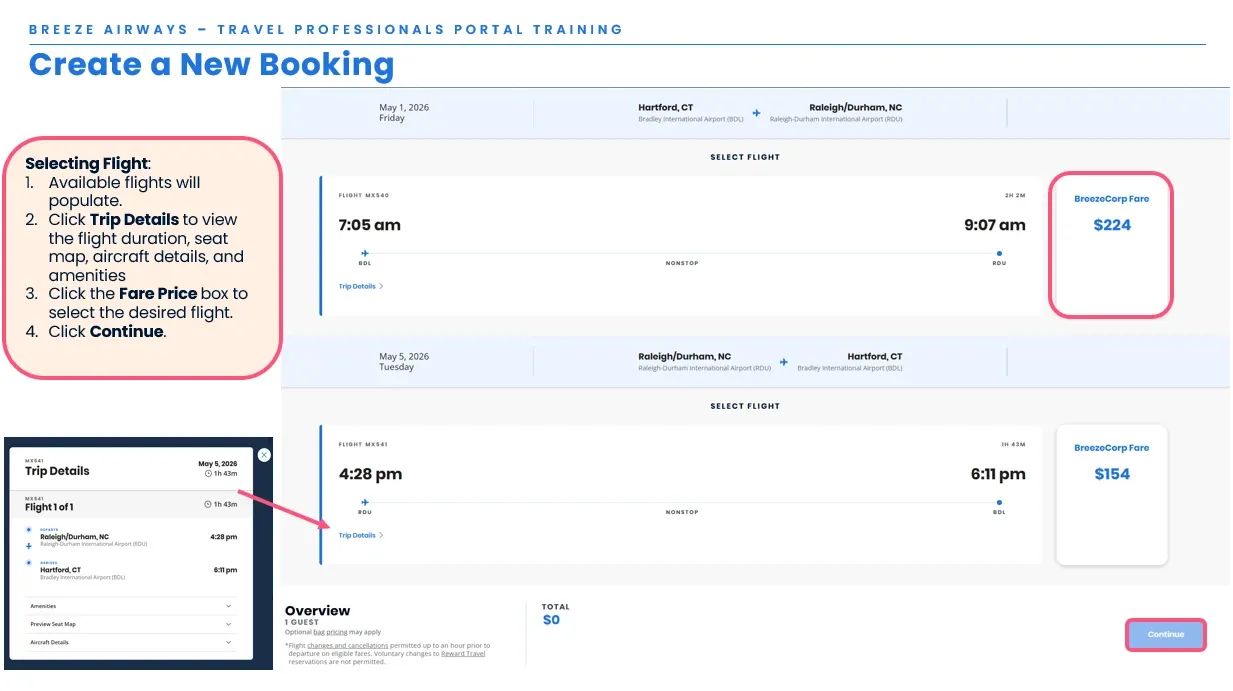
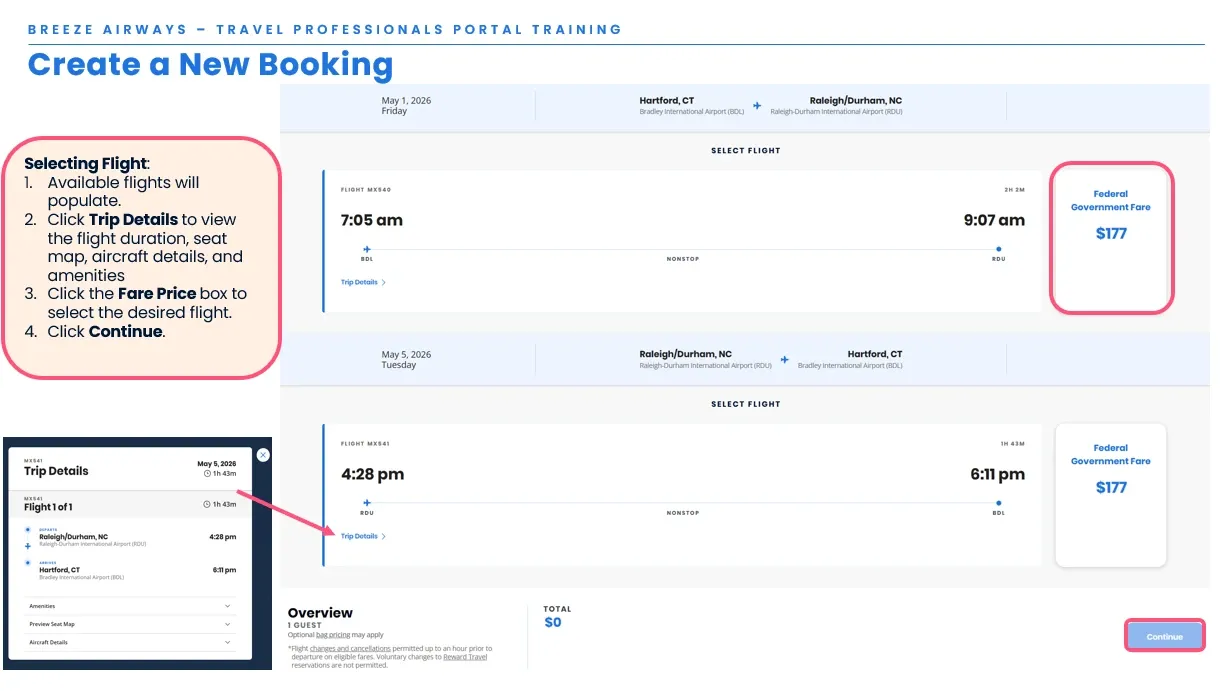
Section titled “Select fare”- Available flights will appear with the appropriate BreezeCorp or Federal Government fare for your account
- Click Trip Details to view the flight duration, seat map, aircraft details, and amenities
- Click the Fare Price box to select the desired flight
- Click Continue
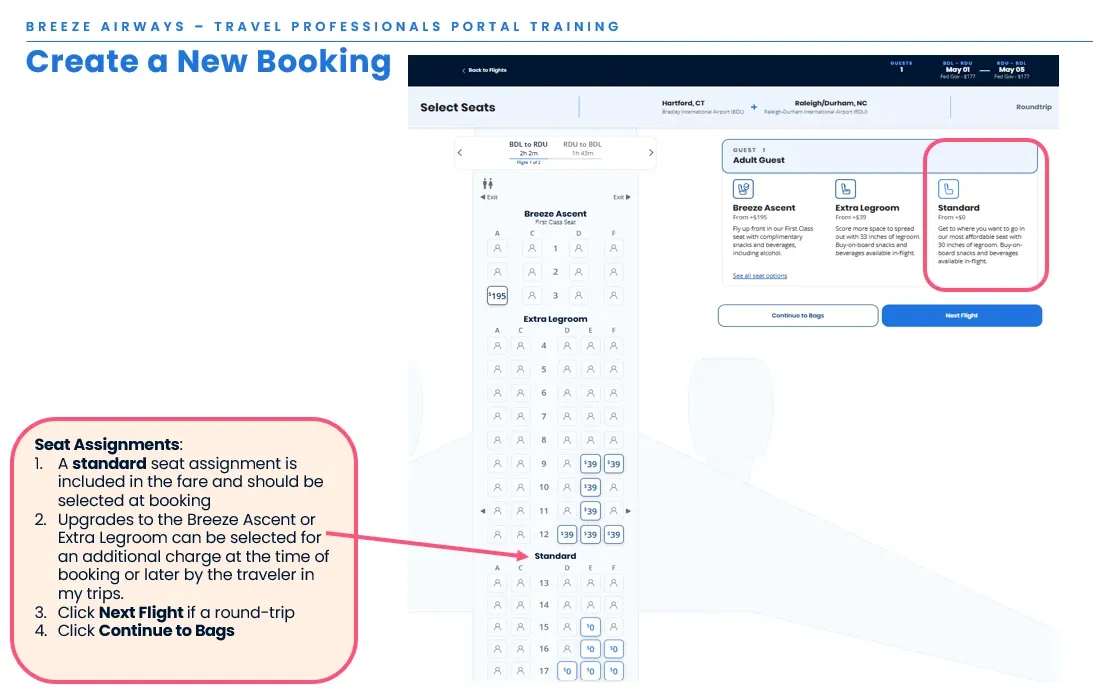
Select seats (free & paid)
Section titled “Select seats (free & paid)”- A Standard seat assignment is included in our BreezeCorp and Federal Government fares. It can be selected with the initial booking
- Upgrades to the Breeze Ascent or Extra Legroom sections can be selected for an additional charge at the time of booking or later by the traveler in My Trips
- Click Continue to Bags
Carry-on and checked bags
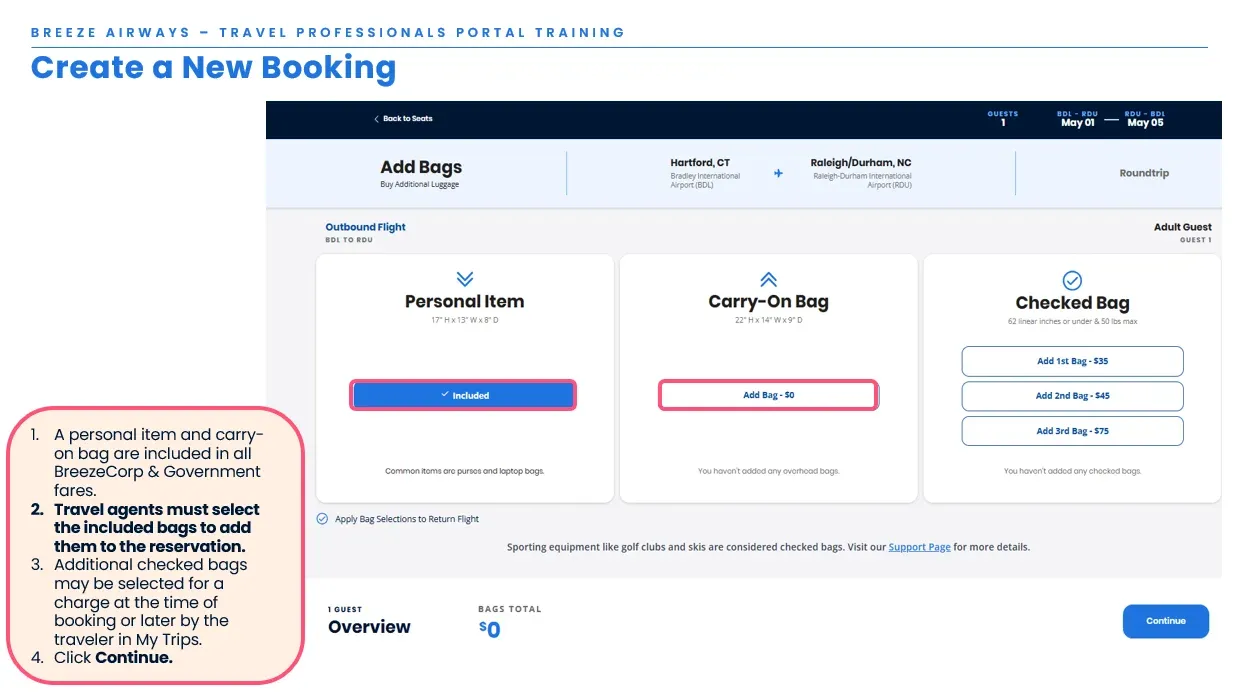
Section titled “Carry-on and checked bags”- A personal item and carry-on bag are included in all BreezeCorp and Federal Government fares
- Some fares and routes may include a checked bag
- Travel agents must select the included bags to add them to the reservation
- Additional checked bags may be selected for a charge at the time of booking or later by the traveler in My Trips
- Click Continue
Enter passenger info
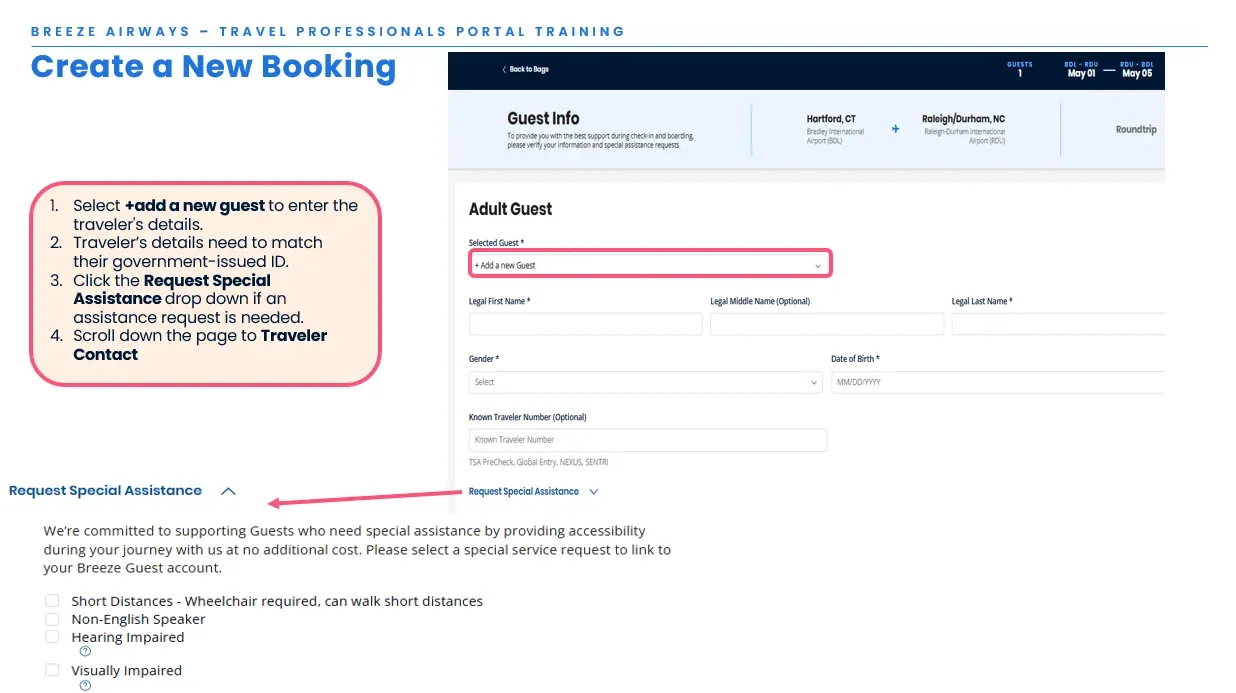
Section titled “Enter passenger info”- Select +Add a New Guest to enter the traveler’s details
- Traveler’s details need to match their government-issued ID
- Click the Request Special Assistance drop-down if the traveler needs special assistance
- Scroll down the page to Traveler Contact
Enter contact information
Section titled “Enter contact information”Breeze uses this information to provide itinerary receipts and traveler alerts (delays, gate changes, etc.)
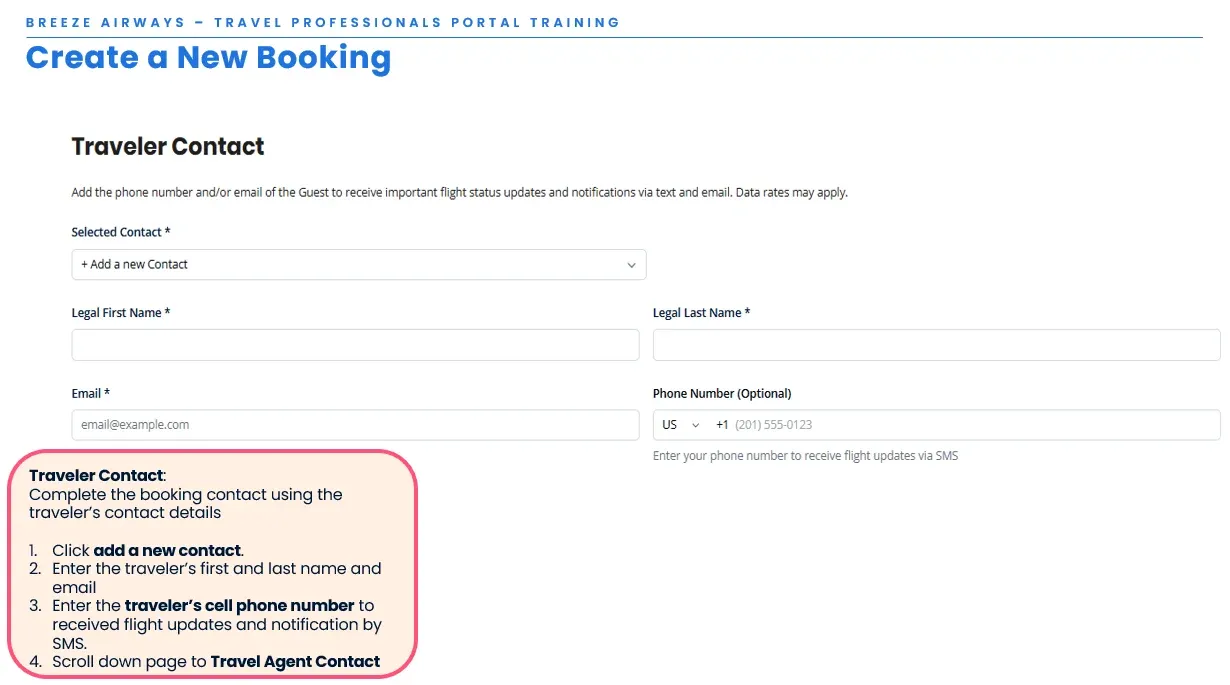
Under Traveler Contact
Complete the booking contact using the traveler’s contact details
- Click Add a new Contact
- Enter the traveler’s first and last name and email
- Enter the traveler’s cell phone number to receive flight updates and notifications by SMS
- Scroll down the page to Travel Agent Contact
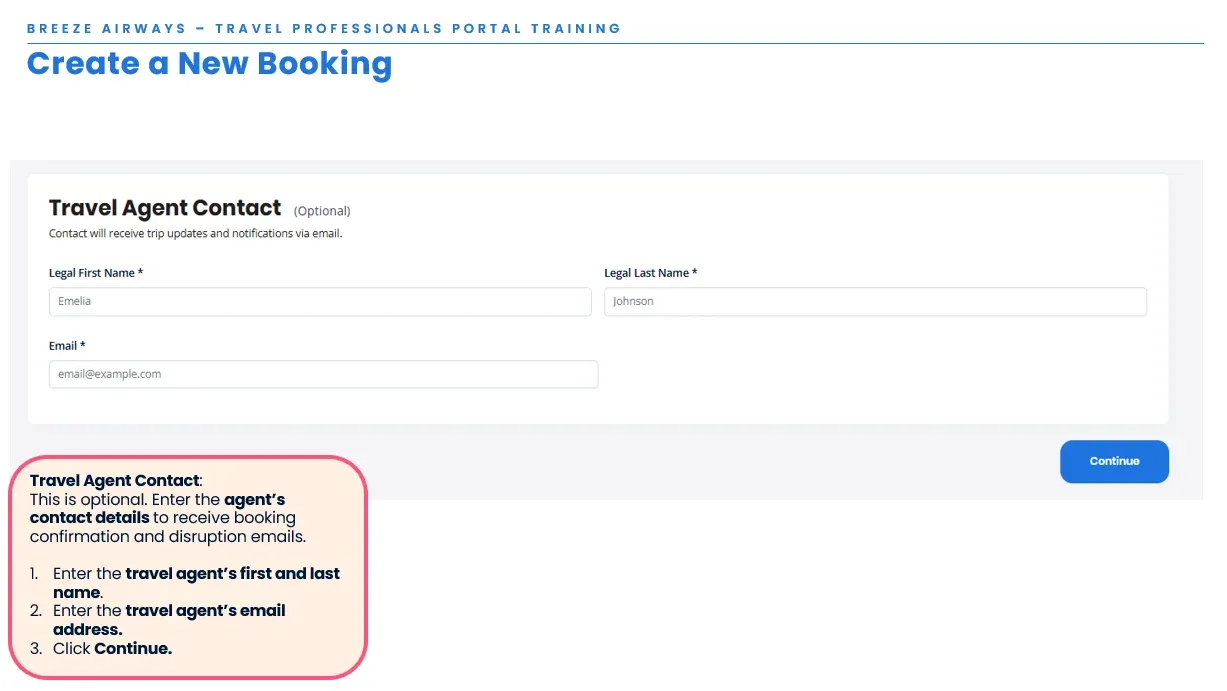
Under Travel Agent Contact (optional)
Enter the agent’s contact details to receive booking confirmation and disruption emails.
- Enter the travel agent’s first and last name
- Enter the travel agent’s email address
- Click Continue
Add trip extras
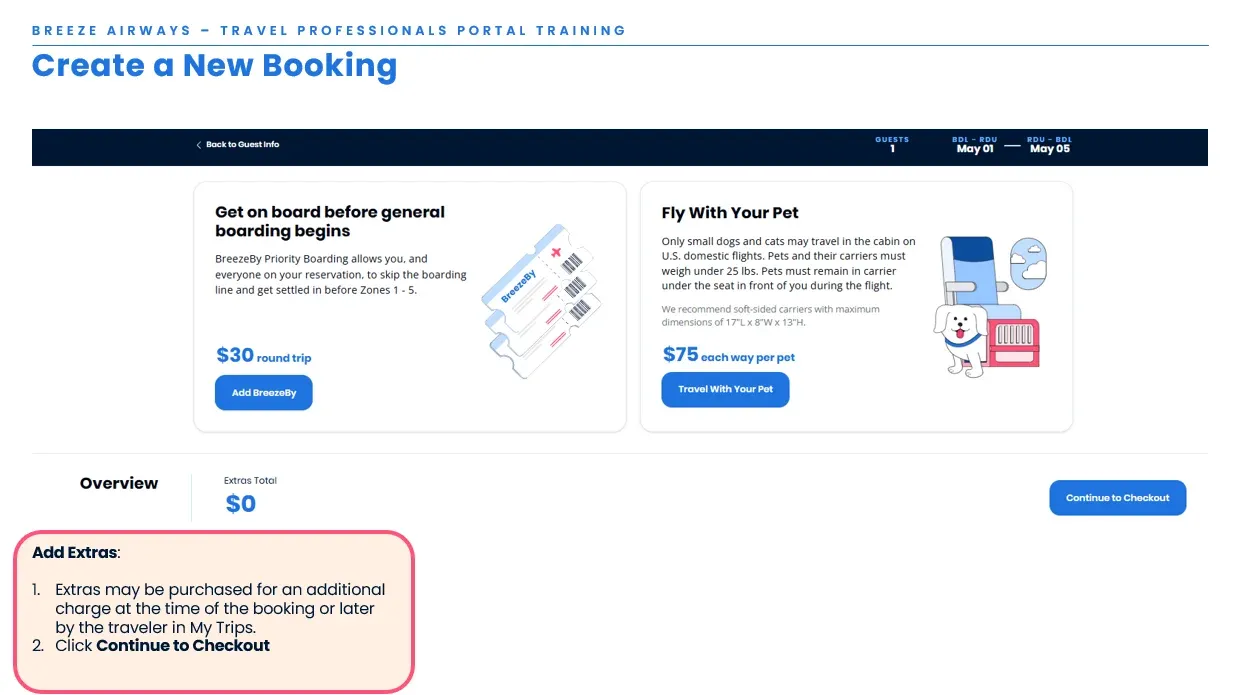
Section titled “Add trip extras”- Extras may be purchased for an additional charge at the time of booking or later by the traveler in My Trips
- Click Continue to Checkout
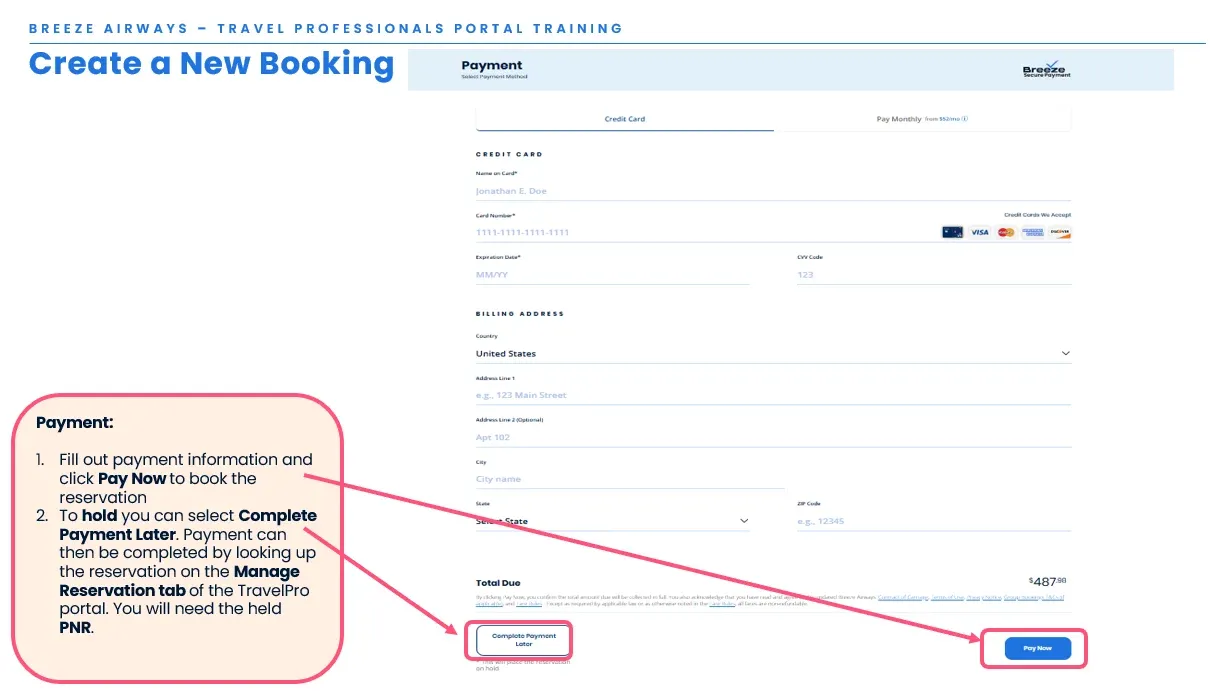
Add payment or place on hold
Section titled “Add payment or place on hold”- Fill out payment information and click Pay Now to book the reservation
- To hold, you can select Complete Payment Later. Payment can then be completed by looking up the reservation on the Manage Reservation tab of the TravelPro portal. You will need the held PNR.